
Creating an ubuntu vm with multipass on MacOS
Sat Aug 23 2025
What is multipass?
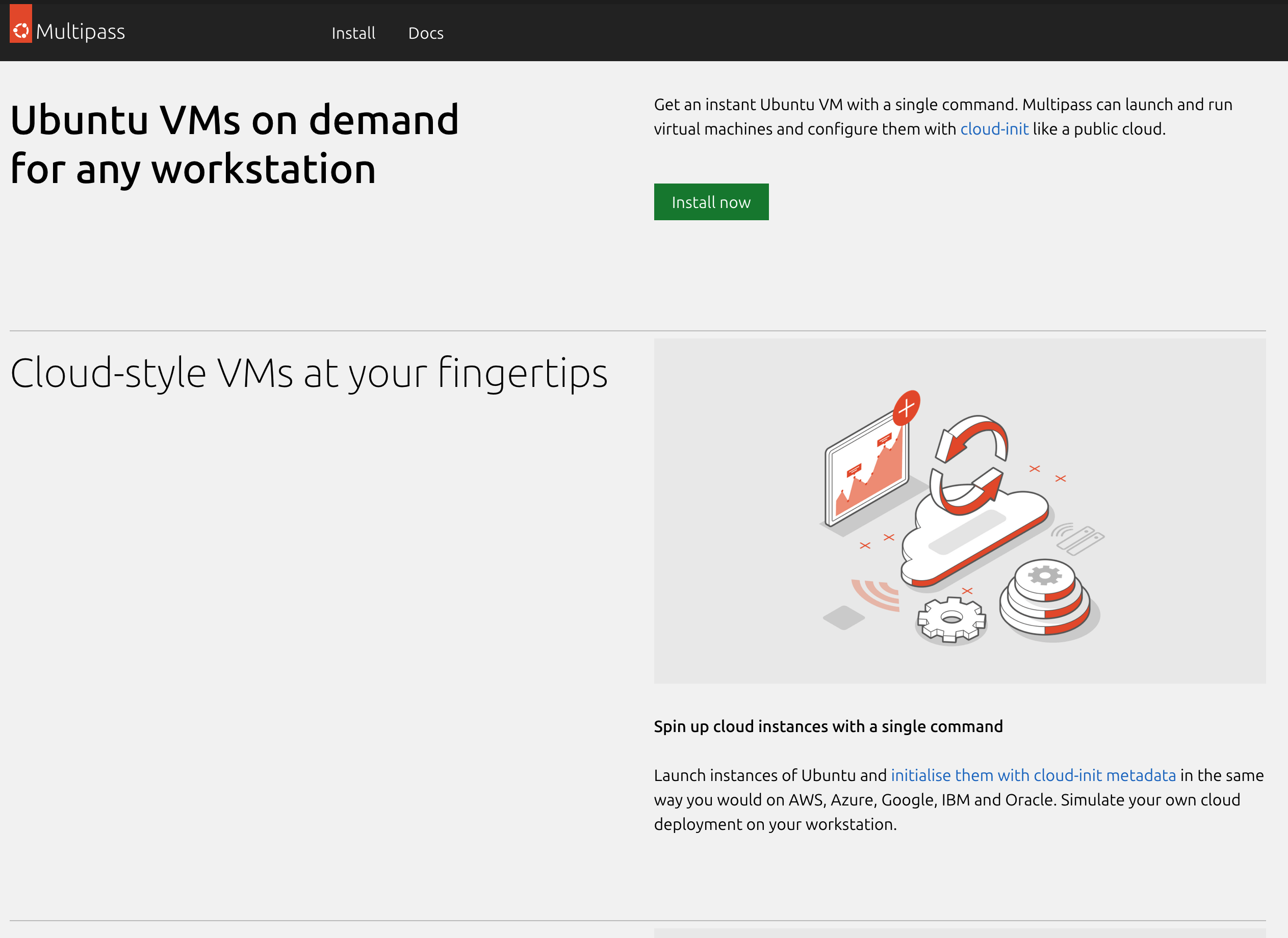
Multipass is a tool to generate cloud-style Ubuntu VMs quickly on Linux, macOS and Windows. It provides a simple but powerful CLI that enables you to quickly access an Ubuntu command line or create your own local mini-cloud.
This definition is directly from canonical website. If you want dive into it more here’s a link to the documentation
Basically, you can simulate working with a Virtual Machine on your local environment. Pretty neat!
This can be your sandbox or playground if you’re looking to learn linux without having to pay to rent one from a Cloud Provider. Also, aimed at beginners who would like to play around with a Linux environments or starting out in the DevOps or Cloud Space.
Install Multipass
It’s pretty straightforward installing multipass on MacOS. All you need is a an installation file downloaded from Canonical Multipass Website.
Open the installation file and follow the prompts.
Once the installation wizard displays success, head over to your terminal(favorite place to be (^_^)) and run the command below
multipass --versionyou should see this below

Creating a VM
Consider how much memory and storage are available to give to a VM. The amazing part about multipass you can define the amount of memory or storage space to allocate to your VM.
multipass launch --name jotaro --cpus 2 --memory 2G --disk 5GLet’s go through the flags
| Flag | Description |
|---|---|
| —name | name of your VM |
| —cpus | amount of cpu cores to allocate to your VM |
| —memory | RAM allocation |
| —disk | Storage allocation amount to your VM |
After a successful response is displayed.
you can teleport into an interactive shell with the command below
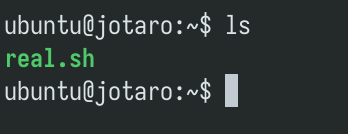
multipass shell jotaroYou can access shell and run wild with your linux playground!
Conclusion
It’s pretty amazing the tools and possibility Linux has given everyone in the Tech Ecosystem. I am just happy to share this knowledge to who it may be useful to. Cheers and We will meet again!